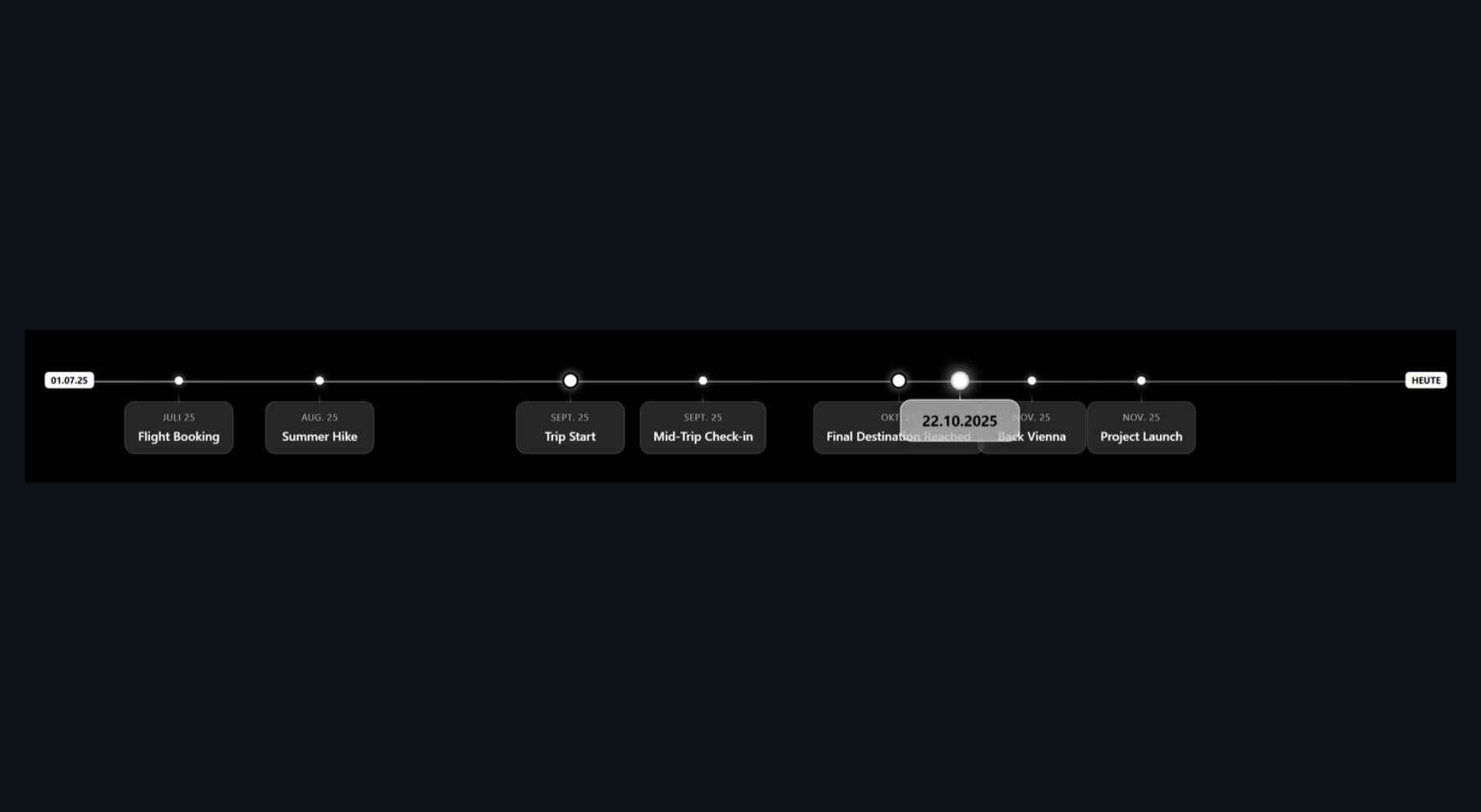
MMM-Timeline
MMM-Timeline is a module for MagicMirror² that displays a visual timeline starting from a specific date up to the current day. It is designed to visualize long-term progress, milestones, and specific events in a clean, horizontal or vertical layout.
Installation
Install
In your terminal, go to the modules directory and clone the repository:
cd ~/MagicMirror/modules
git clone [https://github.com/CuzImHarry/MMM-Timeline](https://github.com/CuzImHarry/MMM-Timeline)
Update
Go to the module directory and pull the latest changes:
cd ~/MagicMirror/modules/MMM-Timeline
git pull
Configuration
To use this module, you have to add a configuration object to the modules array in the config/config.js file.
Example configuration
Minimal configuration to use the module:
{
module: "MMM-Timeline",
position: "bottom_bar", // Highly recommended for horizontal layout
config: {
startDate: "2023-01-01",
orientation: "horizontal",
events: [
{ date: "2023-08-02", title: "Project Start", type: "default" },
{ date: "2024-03-15", title: "Major Milestone", type: "major" },
{ date: "2024-12-01", title: "Final Phase", type: "milestone" }
]
}
},
Configuration with all options:
{
module: "MMM-Timeline",
position: "bottom_bar",
config: {
startDate: "2025-01-01",
endDate: "2025-12-31",
endLabel: "date",
orientation: "horizontal",
tickMode: "years",
updateInterval: 3600000,
events: [
{
date: "2025-02-14",
title: "Valentine's Day",
type: "default"
},
{
date: "2025-05-20",
title: "Project Kickoff",
type: "major"
},
{
date: "2025-08-02",
title: "Fox-WG Anniversary",
type: "milestone"
},
{
date: "2025-09-03",
title: "Grand Trip Start",
type: "major"
},
{
date: "2025-11-01",
title: "Arrival in Vienna",
type: "milestone"
}
]
}
},
Configuration options
| Option | Possible values | Default | Description |
|---|---|---|---|
startDate | string | 2000-01-01 | The beginning of the timeline (Format: YYYY-MM-DD). |
endDate | string | null | The end of the timeline (Format: YYYY-MM-DD). |
orientation | string | horizontal | The layout of the timeline. Use “horizontal” or “vertical”. |
tickMode | string | years | How time markers are displayed. Currently supports “years”. |
endLabel | string | TODAY | Label of end marker. |
updateInterval | number | 3600000 | How often the module refreshes (in ms). Default is 1 hour. |
events | array | [] | An array of event objects: { date: “YYYY-MM-DD”, title: “Name”, type: “type” } |
Event Types
You can categorize your events using the type property to style them differently in your CSS:
defaultmajormilestonehighlight(Auto-assigned via notifications)
Sending notifications to the module
The module can react to external notifications (e.g., from a photo slideshow module) to highlight a specific date on the timeline.
| Notification | Payload | Description |
|---|---|---|
TIMELINE_HIGHLIGHT_DATE | { timestamp: Date/String, label: String } | Adds a temporary “Highlight” marker to the timeline at the specified date. |
Timeline Highlight Functionality
The module supports dynamic updates via external notifications, specifically for drawing attention to specific dates without manually editing the configuration.
1. Notification Name
The module listens for the following unique identifier:
TIMELINE_HIGHLIGHT_DATE
2. Data Structure (Payload)
To trigger a highlight, the notification must be sent with a payload object containing the following properties:
| Property | Type | Description |
|---|---|---|
timestamp | Date / String | The specific date/time where the marker should appear. |
label | String | The text label that will appear alongside the marker (e.g., “Now Playing”). |
3. Behavior
- Auto-Assignment: When this notification is received, the module automatically assigns the
highlightevent type to the marker. - Temporary Nature: Unlike standard events defined in your config, these are “temporary” markers, typically used to sync the timeline with another active module (like a photo slideshow).
- Styling: You can customize the look of these highlights in your
custom.cssby targeting the.highlightclass.
4. Implementation Example (JavaScript)
If you are developing another module and want it to trigger a highlight on the timeline, you would use:
this.sendNotification("TIMELINE_HIGHLIGHT_DATE", {
timestamp: "2023-12-25",
label: "Christmas Day"
});
Developer commands
npm install- Install devDependencies like ESLint.node --run lint- Run linting and formatter checks.node --run lint:fix- Fix linting and formatter issues.
License
This project is licensed under the MIT License - see the LICENSE file for details.
Changelog
All notable changes to this project will be documented in the CHANGELOG.md file.
